
Why "Connected" Doesn't Mean "Protected"
A VPN connection can appear active while still leaking your identity through DNS requests, WebRTC, IPv6 traffic, or misconfigured split tunnelling. The only way to know for sure is to test.
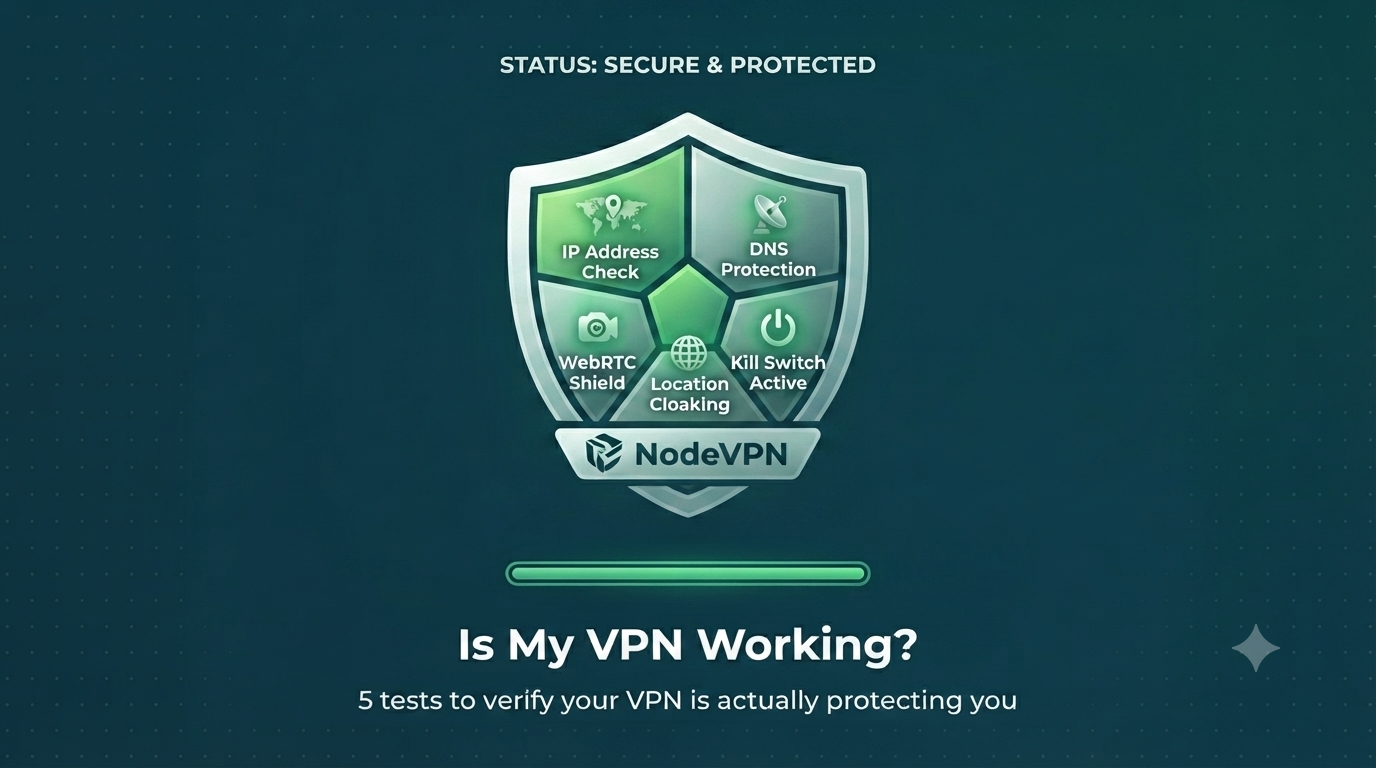
5 Tests to Verify Your VPN
1. Check Your IP Address
The most basic test. Your visible IP address should belong to your VPN provider, not your ISP. If you see your real IP or your ISP's name, your VPN isn't doing its job.
2. Run a DNS Leak Test
Even if your IP is hidden, your DNS requests might still leak to your ISP. A proper DNS leak test uses random domains and checks which DNS servers resolve them. If your ISP's DNS shows up, you have a leak.
3. Test for WebRTC Leaks
WebRTC can reveal your real IP to any website through your browser's peer-to-peer connection system. It works silently and doesn't need your permission.
4. Check IPv6
If your connection supports IPv6 and your VPN only handles IPv4, websites can see your real IPv6 address. Many users don't even know they have IPv6.
5. Verify the VPN Server Location
Check that the geolocation of your visible IP matches the VPN server you selected. If you picked a server in Stockholm but your IP points to your home city, something is off.
Run All Tests at Once
Node On? runs all five checks at the same time and gives you a clear verdict. It's built for NodeVPN users but works with any VPN.
Common Reasons Your VPN Isn't Working
- Browser Secure DNS: overrides VPN DNS settings
- Split tunnelling: your browser may be excluded from the VPN
- Stale connection: the VPN tunnel dropped but the app still shows connected
- Captive portal: hotel/airport Wi-Fi intercepting traffic before the VPN connects
- IPv6 not handled: your VPN only tunnels IPv4
- WebRTC not blocked: browser leaking IPs through STUN